
Configuring the reminder email
Replenish allows you to customise the reminder email that customers receive when it is time to re-order their products.
You can configure the sender details, subject line and email banner.
Step 1: Open the Reminder Email Settings
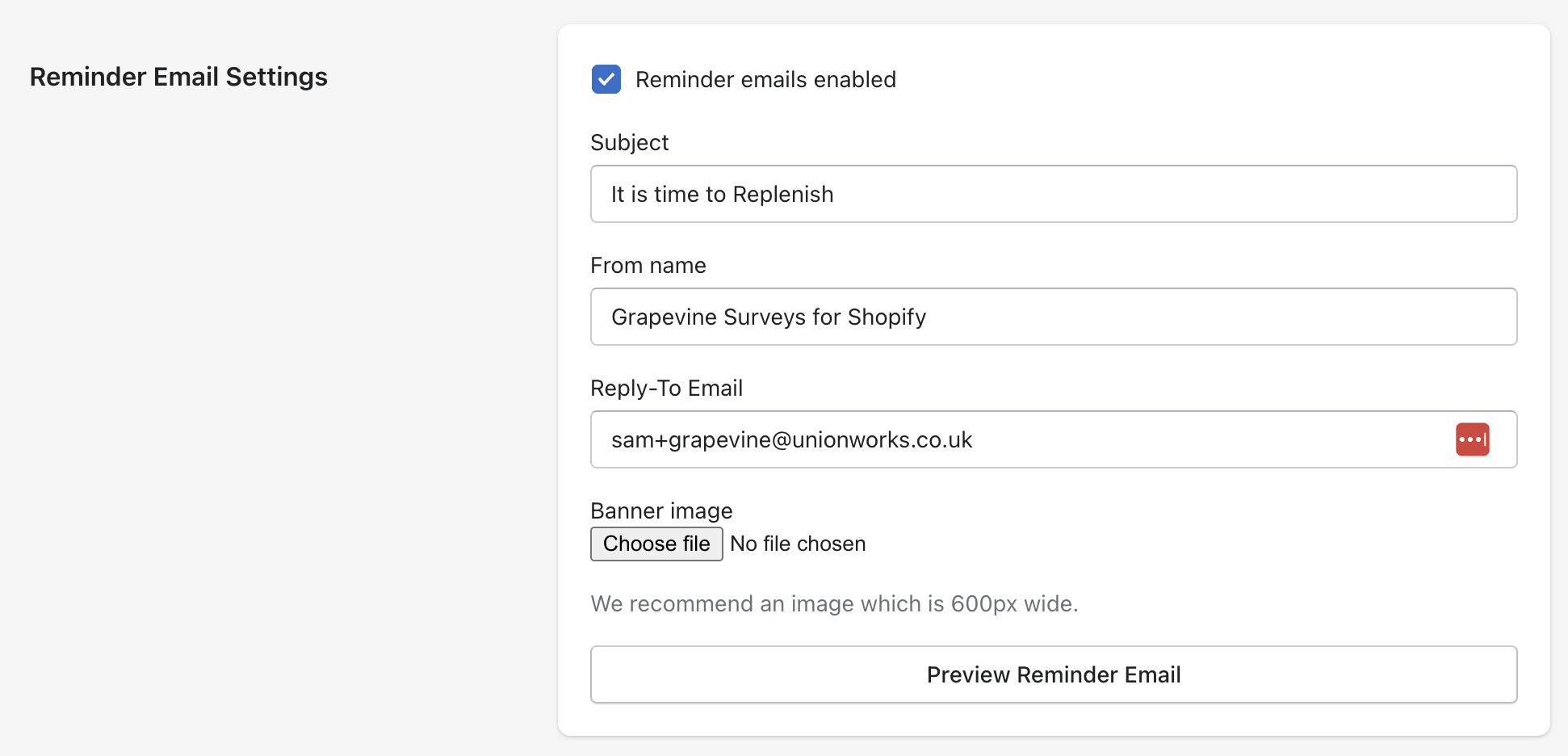
In the Replenish app, navigate to Settings and scroll to the Reminder Email Settings section.
Step 2: Enable reminder emails
Ensure Reminder emails enabled is checked.
This allows Replenish to send reminder emails to customers who have opted in.
Step 3: Configure the email details
You can customise the following fields:
Subject
The subject line customers will see in their inbox.
From name
The name that will appear as the sender of the email.
Reply-To Email
The email address customers can reply to if they have questions.
Step 4: Upload a banner image (optional)
You can upload a banner image to appear at the top of the reminder email.
We recommend using an image that is 600px wide for best results.
Step 5: Preview the email
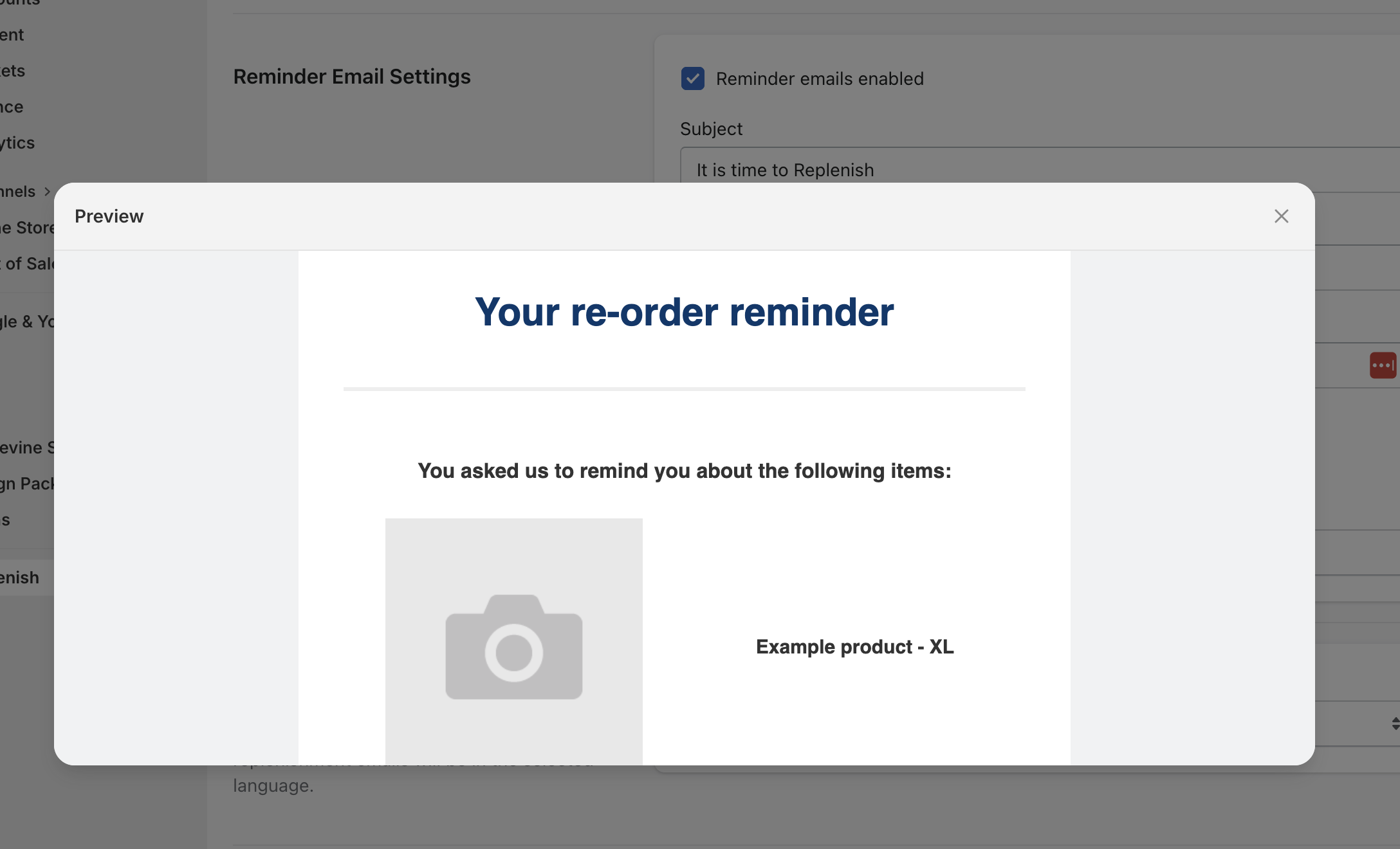
Click Preview Reminder Email to see what the reminder email will look like before it is sent to customers.
This allows you to confirm that the email content and branding appear as expected.
Need help?
If you need any help setting up Replenish, have questions about how it works, or would like a demo, we're here to help.
Email us at [email protected] and we'll get back to you as soon as possible.