
Setting up your re-order reminder campaign
Before Replenish can begin capturing and sending re-order reminders, you need to configure your campaign settings.
These settings define:
The default reminder interval customers will see
The discount offered in replenishment emails (optional)
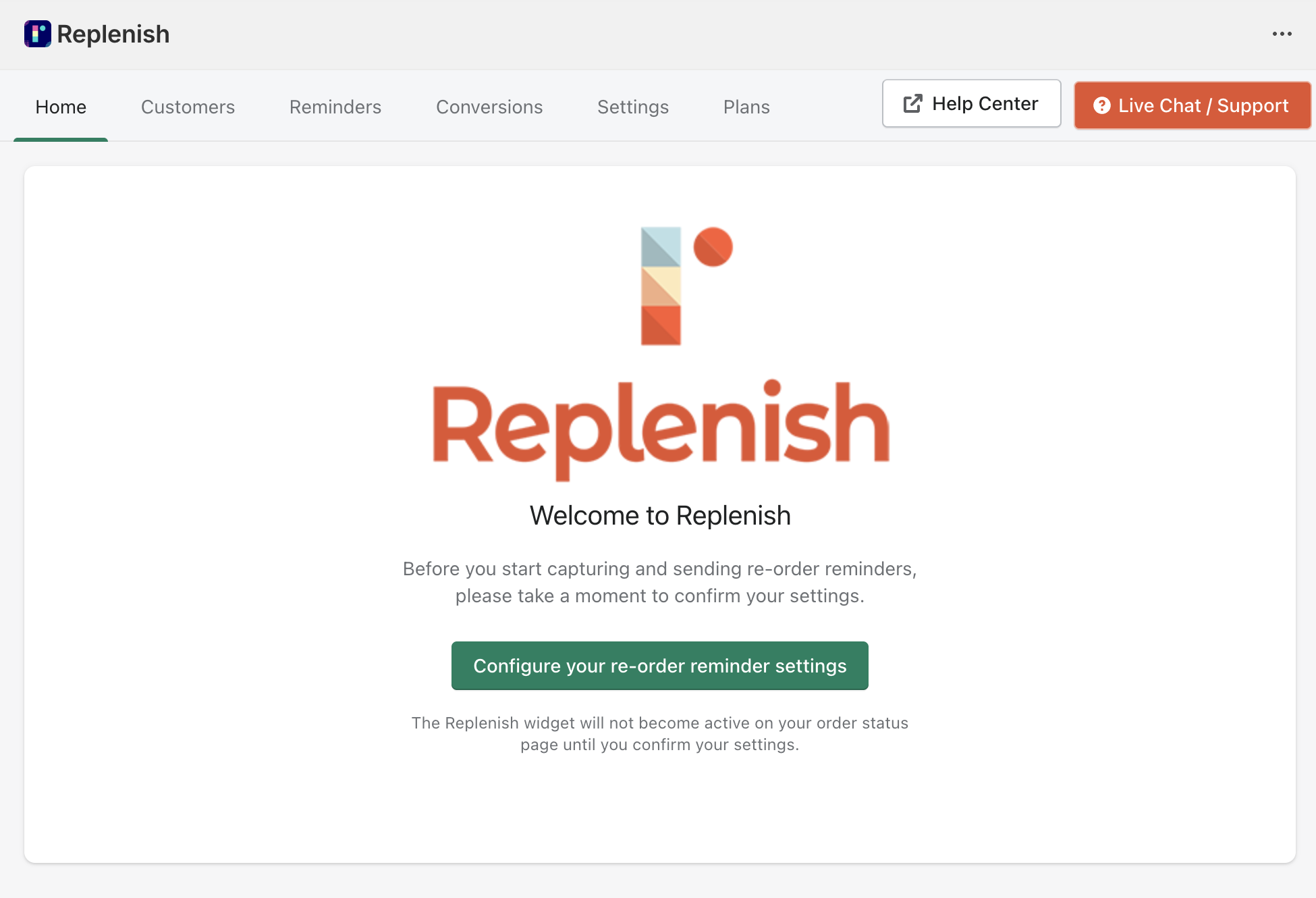
Step 1: Open the Settings page
After installing the app, open Replenish in your Shopify admin and navigate to the Settings tab.
Step 2: Set the default reminder interval
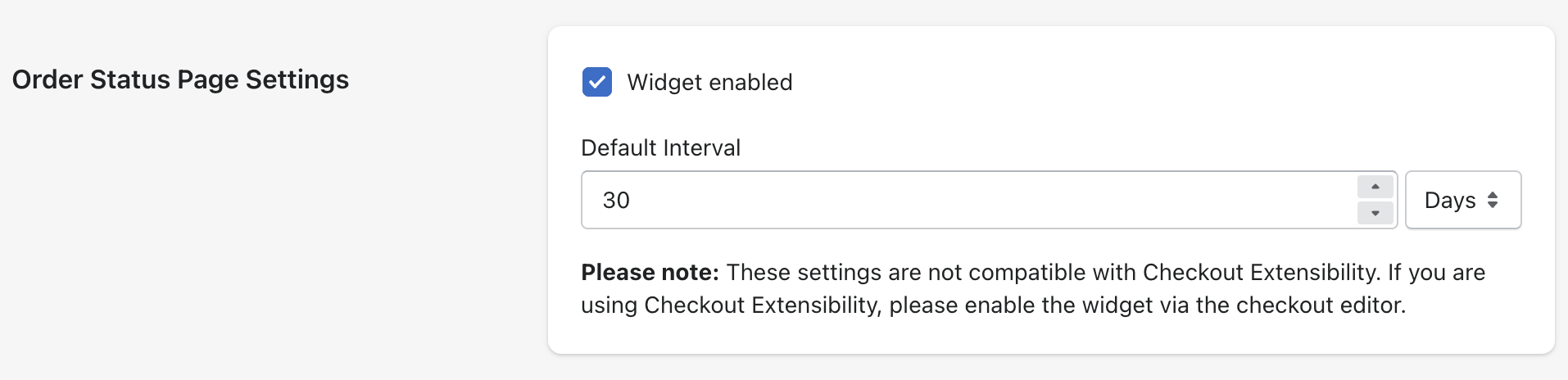
In the Order Status Page Settings section, choose the Default Interval.
This is the suggested time before customers receive their replenishment reminder (for example 30 days).
Customers can adjust this interval themselves when they opt in to reminders.
Step 3: Set a discount (optional)
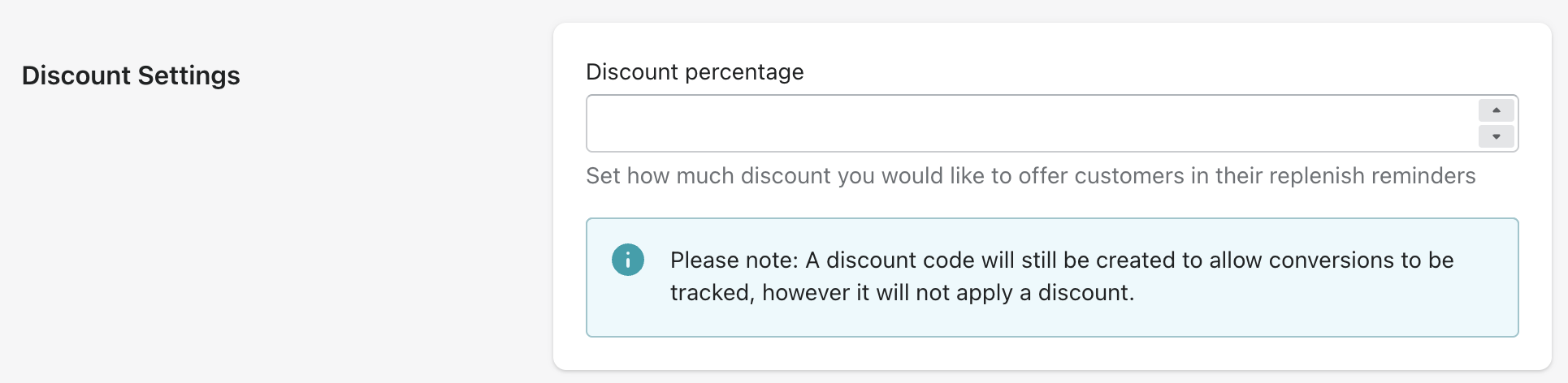
In the Discount Settings section you can choose a discount percentage to include in replenishment emails.
This discount can help encourage customers to return and place another order.
If you leave this set to 0%, a discount code will still be created so conversions can be tracked, but no discount will be applied.
Save your settings
Once your settings are saved, your replenishment campaign is configured.
The next step is to enable the Replenish widget on your order status page so customers can opt in to reminders.
➡ See: Enabling the Replenish widget
Need help?
If you need any help setting up Replenish, have questions about how it works, or would like a demo, we're here to help.
Email us at [email protected] and we'll get back to you as soon as possible.